

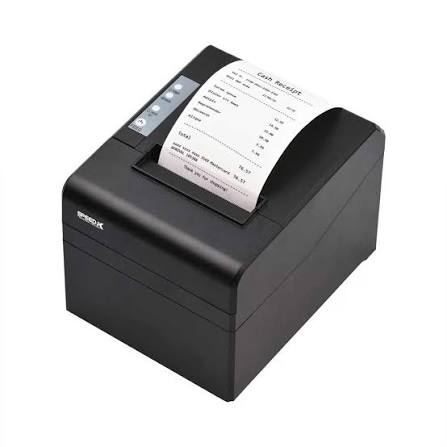
Thermal receipt printers are widely used in retail stores, restaurants, supermarkets, pharmacies, and other commercial environments. Their fast printing speed, compact design, and relatively simple operation make them useful for businesses that handle frequent transactions. However, like other electronic devices, these printers can occasionally develop technical problems that affect printing quality and daily operations.
A Thermal Receipt Printer relies on heat-sensitive paper and a specialized printhead to produce receipts without traditional ink or toner. Although this technology reduces certain maintenance requirements, issues such as blank receipts, faded printing, paper jams, connectivity failures, and cutter malfunctions can still occur. Understanding these common problems and their possible solutions helps businesses restore normal printing operations and reduce unnecessary downtime.
1. Printer Produces Blank Receipts
Blank receipts are among the most common problems users encounter. The printer may feed paper normally, but no text or images appear on the receipt.
Possible causes:
- Thermal paper is installed incorrectly.
- The paper roll is not compatible with the printer.
- The thermal paper coating is damaged.
- The printhead is dirty or malfunctioning.
Troubleshooting steps:
First, check the paper roll orientation. Direct thermal paper has a heat-sensitive side that must face the printhead. Try turning the roll over and printing another test receipt.
If the problem continues, install a new compatible thermal paper roll. You can also clean the printhead according to the manufacturer’s instructions. Persistent blank printing may indicate a damaged printhead or another internal hardware issue.
2. Faded or Light Printing
Faded printing makes receipts difficult to read and can create problems when customers need to verify transaction details.
Possible causes:
- Low-quality or unsuitable thermal paper.
- Dust or residue on the printhead.
- Incorrect print density settings.
- Excessive printhead wear.
How to fix it:
Start by checking the paper quality and confirming that it meets the printer’s specifications. Clean the printhead carefully using an approved cleaning method.
If the printer software provides print density adjustments, check whether the setting needs to be increased. Avoid setting the density unnecessarily high because excessive heat can contribute to printhead wear.
If faded output continues, professional inspection may be necessary.
3. Paper Jams and Feeding Problems
Paper jams can interrupt checkout operations and prevent employees from completing transactions efficiently.
Common reasons:
- Incorrectly installed paper rolls.
- Damaged or folded thermal paper.
- Dust accumulation around the rollers.
- Foreign objects inside the paper path.
- Worn feeding components.
Troubleshooting steps:
Open the printer cover and carefully remove the jammed paper according to the manufacturer’s instructions. Avoid pulling paper forcefully because this may damage internal components.
Check the paper roll for folds, tears, or uneven edges before reinstalling it. Clean accessible rollers and the paper path if necessary.
Make sure the cover is completely closed before attempting another print.
4. Printer Does Not Turn On
A printer that fails to power on cannot receive printing commands or process transactions.
Possible causes:
- Loose power connections.
- A damaged power adapter.
- An inactive electrical outlet.
- Internal electronic faults.
How to troubleshoot:
Check whether the power cable is securely connected to the printer and electrical outlet. If possible, test the outlet using another compatible device.
Inspect the power adapter for visible damage and confirm that it matches the printer’s required voltage and specifications.
If the power indicator remains off despite proper connections, contact a qualified technician rather than attempting to repair internal electrical components yourself.
5. Connectivity and Communication Errors
Thermal receipt printers must communicate correctly with POS systems, computers, or mobile devices. Connection problems can prevent transaction information from reaching the printer.
Possible causes:
- Loose USB or Ethernet cables.
- Incorrect Bluetooth pairing.
- Network configuration problems.
- Missing or outdated printer drivers.
- Incorrect printer port settings.
Solutions:
For USB connections, check the cable and try another compatible port. For Ethernet printers, inspect the network cable and confirm that the device is connected to the correct network.
If using Bluetooth, verify that the printer is paired with the intended device. You should also check whether the correct printer driver and software settings are installed.
Restarting the printer and connected POS device can sometimes resolve temporary communication errors.
6. Automatic Cutter Is Not Working
Many modern receipt printers include an automatic cutter that separates receipts after printing. A malfunctioning cutter can leave receipts attached to the paper roll.
Possible causes:
- Paper fragments blocking the cutter.
- A worn cutting blade.
- Mechanical obstruction.
- Cutter-related software settings.
Troubleshooting steps:
Turn off the printer and follow the manufacturer’s instructions for accessing the cutter area. Remove visible paper fragments carefully without touching sharp internal components.
Check whether the automatic cutter function is enabled in the printer settings. If the cutter remains stuck or makes unusual noises, arrange professional servicing.
Avoid forcing the cutting mechanism manually because this can cause further damage.
7. Printer Produces Unusual Noise
Unexpected clicking, grinding, or rattling sounds may indicate a problem with the paper feed mechanism or other moving components.
Potential causes:
- Improper paper installation.
- Foreign objects inside the printer.
- Worn rollers or gears.
- Problems with the automatic cutter.
How to resolve it:
Switch off the printer and inspect accessible areas for loose paper fragments or obstructions. Check that the paper roll is installed correctly and that the cover is properly closed.
If the unusual noise continues, stop using the printer and seek technical assistance to prevent additional mechanical damage.
8. Receipts Contain Missing Characters or Distorted Text
Sometimes receipts print with incomplete letters, unusual symbols, or incorrectly positioned information.
Possible causes:
- Incorrect printer drivers.
- Incompatible POS software settings.
- Communication errors.
- Incorrect character encoding.
- Damaged printhead elements.
Troubleshooting steps:
Check that the correct printer model and driver are selected in the computer or POS system. Review the software’s receipt formatting and character encoding settings.
Print a test page to determine whether the issue originates from the printer itself or the connected application. If test output is also distorted, the printer may require further inspection.
Preventive Maintenance Tips for Thermal Receipt Printers
Regular maintenance can reduce the frequency of printing problems and help businesses maintain reliable equipment.
Consider following these practices:
- Clean the printhead using manufacturer-approved methods.
- Use compatible thermal paper rolls.
- Keep the printer away from excessive dust, moisture, and heat.
- Inspect the paper feed mechanism and cutter regularly.
- Check cables and connections for visible damage.
- Install recommended firmware and driver updates.
- Follow the manufacturer’s operating and maintenance instructions.
Proper paper storage is equally important. Thermal paper should be kept away from direct sunlight and high temperatures because environmental exposure can affect its sensitivity and printed appearance.
When Should You Seek Professional Technical Support?
Some printing problems can be resolved through basic troubleshooting, but others require professional attention.
Contact a qualified technician if the printer repeatedly overheats, produces unusual mechanical noises, fails to power on despite proper connections, or continues showing printhead and cutter errors after basic maintenance.
Avoid opening sealed electronic components or attempting repairs that could damage the equipment or create electrical safety risks.
Conclusion
Thermal receipt printer problems can interrupt everyday business operations, but many common issues can be resolved through simple troubleshooting procedures. Checking paper orientation, cleaning the printhead, inspecting connections, and maintaining the paper feed mechanism can help address problems such as blank receipts, faded printing, paper jams, and communication failures.
Businesses can also reduce unexpected downtime by using compatible supplies and following regular maintenance schedules. Understanding when to troubleshoot independently and when to seek professional support helps maintain consistent printing performance and reliable transaction processing.


